Konmane
Boxes Series Selling Getting started Settings 見本 Admin
This is a hands-on sample. Changes are not saved.

🔒 Not available in the sample (no device here). Works on a real unit.

Label printer

Current settings: model QL-720NW / label 62 / print width 696 dots / printer address 192.168.1.xxx:9100

⚠ Labels cannot be printed yet. This system prints the QR labels for boxes on a network label printer. Without one you cannot register boxes or scan them.

It works with the Brother QL series (models that connect over wired LAN or Wi-Fi). Set yours up in section 1 or 2 below.

To try before buying: Brother offers a free two-week loan of a demo unit . You can print from this system and check the roll width and how the labels stick before choosing.
Terms: companies only (not individuals), up to two weeks, normally once, for evaluation.
This link cannot be opened from the Wi-Fi this device broadcasts (that network deliberately has no internet). Use a PC, or a phone on mobile data.

1. Set it up from the model name (AI)

Describe the printer and the AI picks which supported model it is. Dimensions such as the print width are taken from the supported list, not from the AI.
No AI API key is set, so choose from the list in section 2.

2. Set it up from the list

Model
Label type
Printer IP
Port
Override the print width (0 = automatic)

“Test the connection” works with the IP you have typed, without saving. It checks that the printer answers and that the model it reports matches the settings. A label printer only receives print data and reports nothing back, so only a test print tells you whether it really prints (it uses one label).

3. Text size on the label

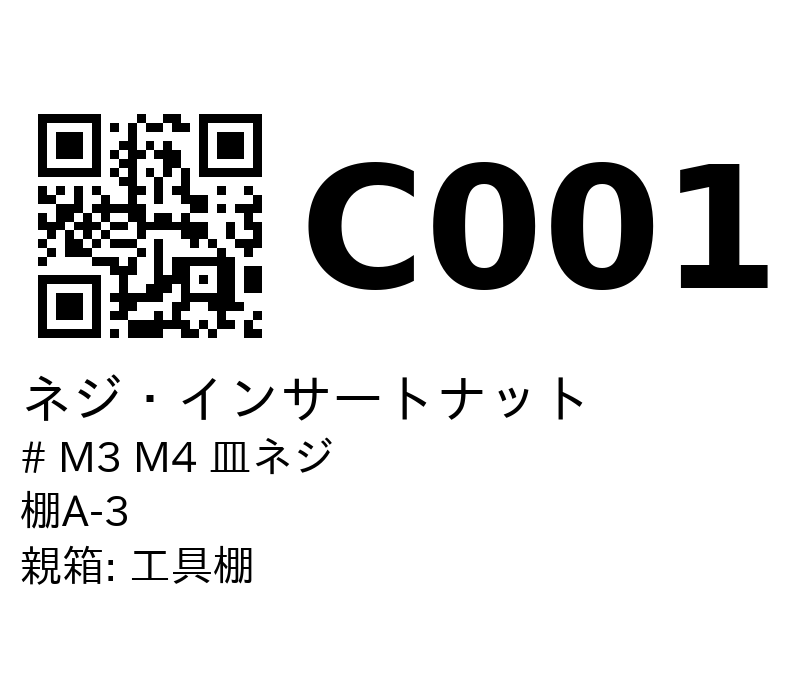
How big each part of the printed label is. It takes effect from the next print. Sizes are remembered separately for each orientation (vertical text can be larger because it can run along the tape). Defaults for the current orientation: ID 170 / label 52 / place 42 / parent 42. The print width is 696 dots on a 62 mm roll, so a larger ID also makes the label longer. Vertical text runs along the length of the tape: the number sits directly under the QR code, then place, item, series and parent box flow downwards as columns. Columns are limited by the length of the tape, not the roll width, so long item names neither wrap nor shrink, and numbers and Latin letters stay upright. The length follows the content, up to “maximum length for vertical text” below. The sizes set here are an upper limit. For a box whose content is too long for the roll width, that label alone is shrunk automatically, dropping parent, series and item name in that order (place is protected to the last). Workers cannot change text size, so the label adapts instead. A monospaced face lines the columns up neatly because full-width and half-width characters share a width.

ID (S001) [px]
Label [px]
Place [px]
Parent path [px]
Series [px]
What to print largest
Text orientation
Vertical order
Typeface
Maximum length for vertical text [mm]

The person sorting and the person fetching need different things. A worker told "go to A-3" in a warehouse wants the box number and location; someone grouping home shelves by series is better served with the series as the headline, so the eye picks up one thing in front of the shelf. With the series as headline, the box number stays small. The QR content is the same either way. No series are set yet (Settings → Box series). Until then, labels print the box number even with the series selected here.

Label preview
Preview (redrawn as you type; you can check without saving)